
Gro Clock instructions: how to set the Groclock
These Gro Clock instructions set out how to use a Tommee Tippee Groclock, often written Gro Clock, in plain words and in the order you need them. They follow Tommee Tippee’s own leaflet for the star-and-sun Groclock and its support pages. We could not open the UK leaflet for the current Ollie the Owl clock, and we have not tested these steps on one, so where a picture on your clock differs from the one named here, follow your own leaflet. We make a different kind of sleep clock, an app, and we are not connected with Tommee Tippee.
Before you start
- Three buttons do everything: Enter, Scroll up and Scroll down.
- You set a wake-up time, not a bedtime. The stars count down from the moment you start the clock to the wake-up time.
- You have to start it every night. The wake-up time is stored, but the countdown does not begin by itself. This is the step people miss.
- Night and nap are two separate wake-up times. The star icon is the night. The sun icon is the nap. Setting one when you meant the other is a common reason for a clock that wakes at the wrong time.
- It runs from the mains through a USB cable. The current clock comes with the cable and no plug; the maker says most USB phone-charger plugs fit.
- The current UK clock shows Ollie the Owl where older ones show a star and a sun. The three buttons are the same.
Set the time of day
- With the clock showing the time, press Scroll down three times. Five small icons flash. This is the settings menu.
- Press Enter. The clock icon flashes. Press Enter again.
- Set the hour with Scroll up and Scroll down, then press Enter. Do the same for the minutes, and then for am or pm.
- The clock shows On or OFF. This is whether the time is shown in numbers during the night. Choose one and press Enter.
Set the wake-up time
- In the settings menu, press Enter so the clock icon flashes.
- Press Scroll down until the star flashes, then press Enter. The star is the night.
- Set the hour, the minutes, and am or pm, pressing Enter after each. Check it says am.
- Press Scroll down to go back to the time.
For a nap, do the same but press Scroll down until the sun flashes. If you do not use the clock for naps, the leaflet suggests setting both to the same time, so a wrong press does no harm.
Start it at bedtime
- At night: from the time display, press Scroll down once. A small star flashes on the picture. Press Enter. The stars appear and the countdown starts.
- For a nap: press Scroll down twice, so the small sun shows, and press Enter.
The stars go out at even steps through the sleep. At the wake-up time the picture changes to morning.
Show your child how it works
The clock has a demo mode, for showing a child what will happen before the first night. Press and hold Scroll up for three seconds to start it, and do the same to leave it.
Lock the buttons
Once the clock is running, press and hold Scroll down until a cross appears on the picture. The buttons are now locked. To unlock, press and hold Scroll down until it beeps. The lock switches itself off at the wake-up time.
There is no PIN. A child who watches you set the lock can undo it, which is why the leaflet says not to let them see.
If the Gro Clock is too bright
- In the settings menu, press Enter so the clock icon flashes.
- Press Scroll down four times, until the light bulb flashes, and press Enter.
- Choose a level from 0 to 10 and press Enter. 0 is the dimmest.
Tommee Tippee says the display of the current clock can be turned up, down or off.
When the clocks change (daylight saving)
The Groclock does not change itself when the clocks go forward or back. On the night of the change, set the time of day again, an hour forward or an hour back, using the steps above. The wake-up time you stored stays as it was. For moving a toddler’s bedtime in the days before, see the clock change plan.
After a power cut, or if it was unplugged
The clock keeps your wake-up times and the brightness, but it stops counting while it has no power. When the power comes back, the time of day is behind by as long as it was off. Set the time of day again. This is another common reason for a clock that wakes at the wrong time, and it is why switching it off at the wall in the morning causes trouble.
The alarm
The Groclock can also sound an alarm, set separately from the night and the nap. In the settings menu, press Enter, then Scroll down three times until the bell flashes, and press Enter. Set the time, choose the bell for on or the crossed bell for off, and press Enter.
If the buttons are the problem
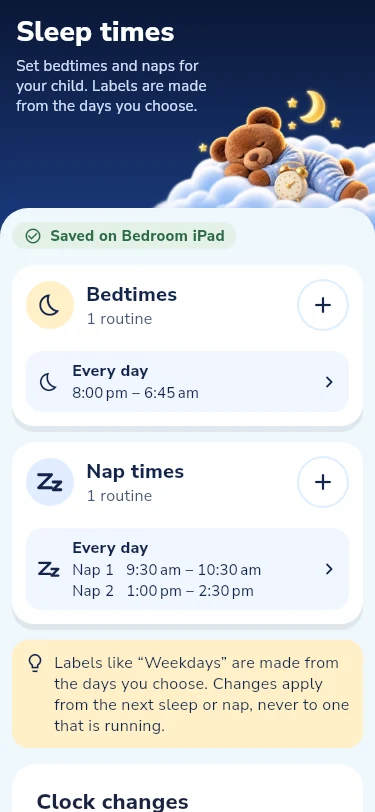
If you would rather not set a clock by the bed, Snoozaroo is a sleep clock app for an Android tablet or phone, free to start. You set bedtimes, wake-up times and naps once, from your phone, the schedule runs each night while the app is open on the tablet, and the hour’s change in spring and autumn is handled for you. How the sleep clock app works has the detail, and the honest comparison, including where the Groclock wins, is on Groclock alternative.
Where these Gro Clock instructions come from
Sources: Tommee Tippee’s leaflet “How to use your Groclock” (the star-and-sun model), its Groclock support page (https://www.tommeetippee.com/en-gb/product-support/support-groclock) and its article Coping with a child’s bedtime when the clocks change (https://www.tommeetippee.com/en-gb/parent-library/newborn-baby/sleeping/coping-with-bedtime-when-the-clocks-change), read on 12 November 2026. Check the leaflet for your own model if a step differs.
Questions
How do I use a Gro Clock for naps?
Set the nap wake-up time under the sun icon, then at nap time press Scroll down twice and Enter. The stars count down to that time.
Why did my Gro Clock wake at the wrong time?
Three common causes. The nap time (the sun icon) was set when you meant the night (the star). The time of day is wrong because the clock was unplugged or the clocks changed. Or the wake-up time is set to pm.
Does the Gro Clock change by itself when the clocks go back?
No. Tommee Tippee’s own article on the clock change says to set the clock an hour back or an hour forward yourself.
Can I make the Gro Clock dimmer?
Yes. The brightness has levels from 0 to 10, in the settings menu under the light bulb.
Can my child switch it off?
The key lock stops the buttons working, but it has no PIN, and nothing stops a child pulling the plug. After that the time of day needs setting again.
Is there a Gro Clock app?
Not for the standard Groclock, which is set with its three buttons. Groclock alternative has more on apps.
What age is the Gro Clock for?
Tommee Tippee lists it from 12 months. Many parents find the waiting only makes sense to a child from about two and a half. See what age an OK to wake clock works from.