How the sleep trainer clock works on a tablet
Bedtime
Their pal settles down and six stars light up.


Sleep time
The stars go out one by one as sleep time passes. While any are left, it’s still night.
Morning
The sun comes up and their pal shows it’s OK to get up. With Plus, a present appears, with a toy for the shelf.
Pyjama Ted’s night and day scenes are the app’s own. Press play on the clips to see them move.
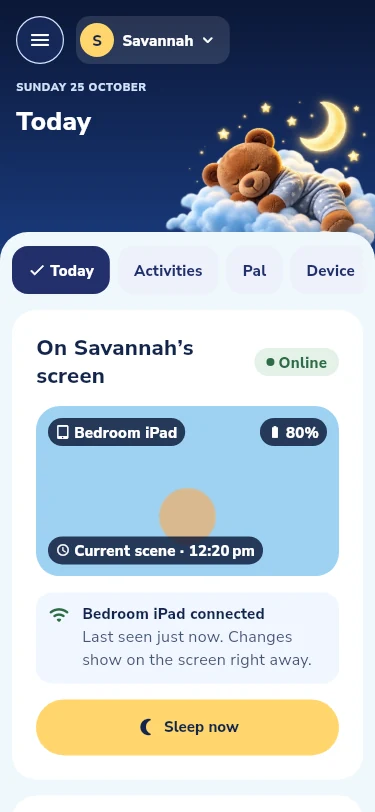
Snoozaroo is a toddler sleep trainer, the job a Groclock or sleep trainer clock does, as an app for the Android tablet or phone your family already has (coming to iPad). Above: what the child sees. Below: how you set it up and what each part does. It has two sides. Parent mode, on your phone or tablet, is where you set up the family, the sleep times, the sounds and the pal. The Pal Screen, on the bedroom tablet, is what your child sees: the pal, the stars, one gentle activity and the sounds, with the grown-up controls behind the grown-up PIN. Once the plan is saved, bedtime runs the same whether it is you, your partner, a grandparent or your helper in the room.
Bedtime, every night
- At bedtime the pal settles and six stars glow. They go out one by one while your child falls asleep.
- When the sun comes up, the pal shows it is OK to get up. You choose the times in the schedule in Parent mode, for bedtime and for naps.
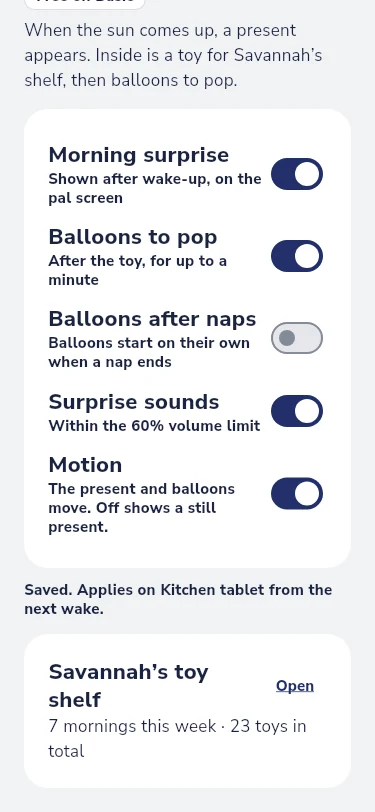
- With Plus, a present appears. Inside is a toy for your child’s shelf, then balloons to pop. You can turn the surprise, the balloons and its sounds on or off at any time. Toys on the shelf stay there, even if Plus ends.
The same stars and sunrise run every nap, so it is a nap clock in the day. With Plus, bedtime can begin with a routine: you choose the steps, the pal does each one with your child, then a lullaby plays as the screen dims. See the bedtime routine app.
Setting up a bedroom screen
Open Snoozaroo on the bedroom tablet and choose to set it up as a Pal Screen. It shows a code. In Parent mode, open Devices and add a screen by scanning that code. The camera is used only to scan the code. If you only have one tablet, you can use that device as the Pal Screen instead.
Your family has one six-digit grown-up PIN. Every Pal Screen in your family accepts it, and each screen checks it on the screen itself, even offline. To reach the grown-up controls on a screen, hold the padlock and enter the PIN. Share the PIN with the grown-ups who put your child to bed; the plan itself is changed from Parent mode.
From your phone
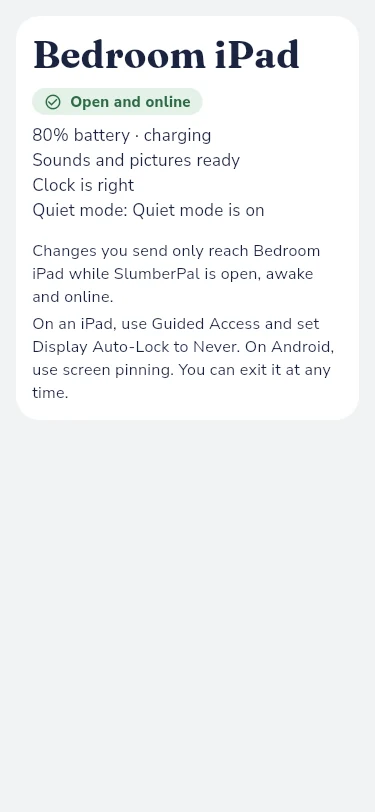
From Parent mode you can send an action to a screen, such as starting an activity or a wake. It applies only while Snoozaroo is open on that screen, the screen is awake and the tablet is online. If the app is closed, the screen is locked or the tablet is offline, the action waits until it expires and Parent mode tells you it did not apply. This is how phones and tablets work, not a fault. On Android, screen pinning keeps Snoozaroo open, and you can exit it.
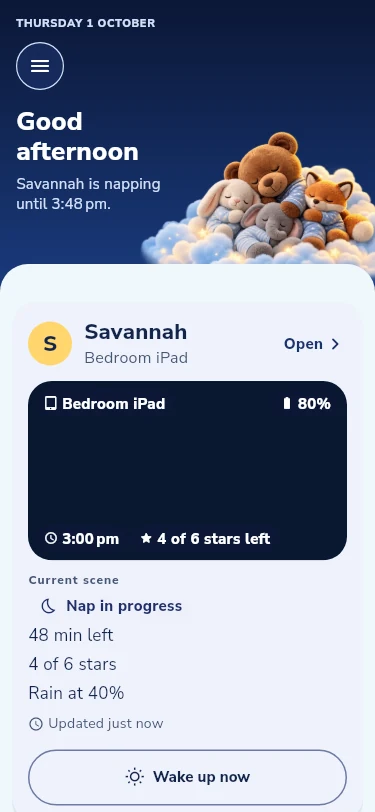
With Plus, every grown-up in the family sees the live view and the morning controls on their own phone, and you can give a helper or grandparent the carer role. A late evening at the office does not change what the screen does at bedtime: the saved times run on the screen itself.
Sounds
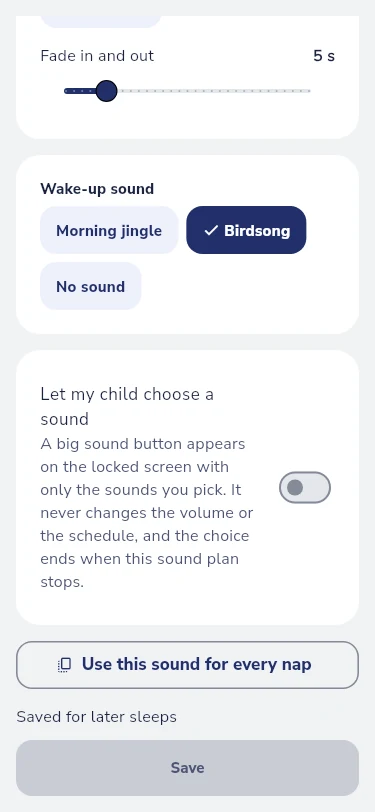
You can choose a sound for each sleep, such as noise, nature or a lullaby, and when it stops. A wake sound is short. Snoozaroo starts quiet and never plays above a volume cap that you can lower. It never changes the tablet’s own volume, so set that low and keep the tablet across the room. In a shared bedroom, a low cap and a sound that stops after a set time keep the screen from carrying across the room. Snoozaroo does not make any claim about safe listening levels.
Keeping the tablet quiet
Notifications and calls from other apps can wake a child, and in a shared room they can wake two, so set the bedroom tablet to be quiet while Snoozaroo is open. On Android, Snoozaroo asks once for Do Not Disturb access, then turns its own quiet mode on for each sleep and off at wake. Its sleep sounds keep playing. Clock alarms set on the tablet still ring. Snoozaroo does its best here, and cannot promise that no other app will ever make a sound.
See it in action
A short video of Snoozaroo in use, with captions and a transcript, is on its way. Until then, the Help articles inside the app cover every step above.